Introduction
If you’ve spent any time searching for “youtube to mp3 320kbps,” you’ve probably noticed something strange: dozens of tools promise the number, but almost none of them explain what it actually means — or whether YouTube even has 320kbps audio to give you in the first place.
Short answer: it doesn’t, not really. YouTube’s own audio streams top out well below that figure. So when a converter tool tells you it’s exporting “320kbps,” it’s often just relabeling audio that was never that detailed to begin with. That’s not a scandal — it’s just how compressed audio works — but it’s the kind of thing worth knowing before you build your music library around a number that sounds impressive but doesn’t tell the whole story.
This guide breaks down what bitrate actually controls, what YouTube streams at behind the scenes, and — just as importantly — how to get good-quality audio from YouTube content without running into copyright or malware trouble along the way.
Here’s an easy way to convert YouTube videos into MP3 files.
What Does “320kbps” Actually Mean?
Bitrate measures how much audio data is packed into each second of sound — in this case, 320 kilobits per second. Higher bitrate generally means more information retained from the original recording, which translates to richer detail: cleaner highs, more defined bass, fewer of the swishy, metallic artifacts you get from heavy compression.
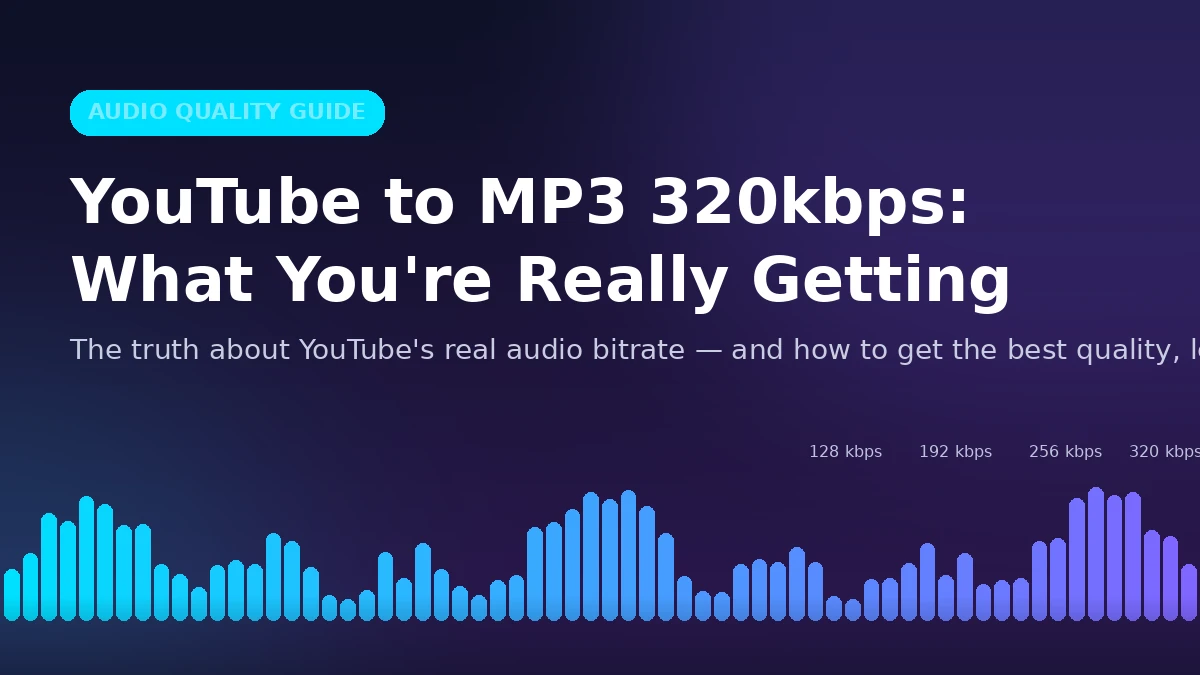
For context, here’s roughly how MP3 bitrates compare in real-world listening:
| Bitrate | Typical Use Case | Audible Quality |
|---|---|---|
| 128 kbps | Old-school streaming, small files | Noticeable compression artifacts, especially in cymbals/vocals |
| 192 kbps | Standard “good enough” quality | Decent for casual listening, some detail loss on complex tracks |
| 256 kbps | Common streaming-service standard (Spotify, Apple Music) | Close to transparent for most listeners |
| 320 kbps | MP3 format’s practical ceiling | Best MP3 can offer; differences from 256kbps are subtle for most ears |
Here’s the part that trips people up: 320kbps is a ceiling, not a guarantee. A converter can label a file “320kbps,” but if the source audio never had that much detail, the extra bits are just padding — silence dressed up as fidelity. Think of it like upscaling a blurry photo to 4K: the file gets bigger, but no new detail actually appears.
YouTube’s Real Audio Quality — What’s Actually Streaming
This is the piece most guides skip, and it’s the one that matters most.
YouTube doesn’t serve lossless or even particularly high-bitrate audio. Its streams typically use the AAC codec (not MP3) at bitrates that top out around 128–192kbps for standard uploads, with some higher-tier streams reaching the equivalent of roughly 256kbps AAC on premium content. AAC is a more efficient codec than MP3, so a 192kbps AAC stream can sound comparable to a 256kbps MP3 — but it’s still nowhere near a “320kbps MP3, straight from the source” claim.
What this means practically: if you take YouTube’s audio and re-encode it into a 320kbps MP3, you’re not adding quality — you’re just changing containers. The file gets bigger. The sound doesn’t get better. Any tool claiming otherwise is selling you a placebo.
This isn’t a knock on YouTube — it’s a smart trade-off for a platform serving billions of video streams a day. But it’s worth knowing before you assume a “320kbps rip” sounds meaningfully different from the original video’s audio.
Who Actually Needs High-Bitrate Audio?
Not every use case benefits equally from higher bitrates. It’s worth being honest about where it matters and where it’s overkill:
- Music with dense arrangements (orchestral, electronic, layered production) — higher bitrates preserve more of the mix’s detail, especially in cymbals, reverb tails, and low-end.
- DJs and producers sampling audio (with proper licensing) — every bit of headroom helps when a track gets processed further.
- Language learners looping short clips — clarity matters more than bitrate here, but a cleaner source makes repeated listening less fatiguing.
- Podcasts and spoken-word content — this is where bitrate matters least. Voice-only audio sounds essentially identical at 128kbps and 320kbps to most listeners; you’re unlikely to notice the difference outside of a controlled A/B test.
If you’re mostly listening on phone speakers, earbuds on a commute, or in a car, the gap between 192kbps and 320kbps is often inaudible. Save the higher bitrates for critical listening on good headphones or studio monitors.
How to Get YouTube Audio the Legal, Low-Risk Way
Here’s where most guides on this topic go sideways — they walk you straight into copyright and malware risk without much of a warning. Worth being direct about it: downloading and converting someone else’s copyrighted YouTube video into an MP3 without permission violates both YouTube’s Terms of Service and, in most cases, copyright law. Enforcement against individual personal use is inconsistent, but the legal exposure is real, and a lot of the “free converter” sites built around this use case are riddled with malware, fake download buttons, and adware.
The good news: there are several ways to get quality audio from YouTube-adjacent content without any of that risk.
1. YouTube Premium (Best for Offline Listening)
YouTube Premium lets you save videos and YouTube Music tracks for offline playback directly in the app. It’s not an MP3 file you can move elsewhere, but if your goal is just “listen without using data,” this is the fully legal, ad-free option — and the audio quality is the actual source quality, no re-encoding involved.
2. YouTube Music / Streaming Services
If the goal is building a music library, a subscription service (YouTube Music, Spotify, Apple Music, Tidal) gives you licensed, high-bitrate audio the artist and label actually get paid for. Tidal and Apple Music, in particular, offer lossless tiers that outperform anything a YouTube rip could produce.
3. Your Own Uploaded Content
If it’s your video — your podcast, your voiceover, your original music — you’re free to extract and convert the audio however you like. This is the cleanest, zero-risk use case for any YouTube-to-MP3 tool.
4. Creative Commons and Public Domain Content
YouTube has a large library of Creative Commons-licensed videos (searchable via YouTube’s filters) and public domain audio, where conversion and reuse are explicitly permitted. Always double-check the specific license terms — “Creative Commons” covers several license types with different reuse rules.
5. Direct Licensing or Permission
For educators, podcasters, or creators who want to legally use a specific clip, reaching out to the original creator for permission is often simpler than people expect — many are happy to grant it for non-commercial or educational use.
Maximizing Audio Quality When You Are Converting Legitimate Content
If you’re working with content you have the rights to — your own uploads, CC-licensed material, or permitted content — a few technical choices affect how good the final file sounds:
- Use VBR over CBR when available. Variable Bit Rate encoding (like LAME’s V0 or V2 presets) allocates more data to complex passages and less to quiet ones, often sounding indistinguishable from a 320kbps constant-bitrate file at roughly half the file size.
- Keep the sample rate at 44.1kHz. This matches standard music production and playback; bumping it higher doesn’t add detail, just file size.
- Avoid re-encoding more than once. Every pass through a lossy codec (AAC → MP3 → AAC, for example) compounds artifacts. Convert once, at your target quality, and stop.
- Check for multiple audio tracks. Some videos include commentary or alternate audio tracks — make sure you’re pulling the one you actually want.
- Use a reputable encoder. The LAME MP3 encoder remains the industry standard for a reason; it consistently outperforms lesser-known encoders at the same bitrate.
The Bottom Line
“320kbps” is a real, meaningful measurement — but it only tells you the format’s ceiling, not the actual quality of what you’re getting from YouTube. The platform’s own audio streams sit well below that number, so the most useful thing you can do is match your expectations (and your source) to reality: use YouTube Premium or a streaming service for casual listening, stick to content you actually have rights to when converting, and treat “320kbps” claims from converter tools with a healthy amount of skepticism.
READ MORE: How to Legally Download YouTube Videos for Offline Viewing
Frequently Asked Questions
Does YouTube actually stream audio at 320kbps?
No. YouTube’s audio streams typically use AAC compression at bitrates roughly in the 128–192kbps range, occasionally reaching the rough equivalent of 256kbps AAC on higher-tier streams. A “320kbps” MP3 conversion of YouTube audio is re-encoding, not recovering lost detail.
Is it legal to convert YouTube videos to MP3?
It depends entirely on the content. Converting your own uploads, public domain material, or properly licensed Creative Commons content is legal. Converting copyrighted music or videos without permission generally violates both YouTube’s Terms of Service and copyright law, regardless of bitrate settings.
Will YouTube Premium give me an MP3 file?
No. Premium allows offline downloads for in-app playback only — it does not produce a portable MP3 file, and extracting one from a Premium download would still violate YouTube’s Terms.
What’s the real difference between 128kbps and 320kbps audio?
On music-heavy content, 320kbps typically preserves more clarity in vocals, cymbals, and layered instrumentation. On spoken-word content like podcasts, most listeners can’t reliably tell the difference in casual listening.
What’s better, VBR or CBR encoding?
High-quality VBR (like LAME’s V0 preset) generally sounds equivalent to 320kbps CBR while producing a noticeably smaller file. CBR guarantees a constant bitrate throughout, which matters for some streaming or broadcast use cases, but for personal listening, VBR is usually the more efficient choice.
Why do converted files sometimes sound worse than the original video?
Repeated compression (transcoding from one lossy format to another) degrades quality with each pass. If a file has already been compressed by YouTube and then re-encoded again, some detail loss is unavoidable — no output bitrate setting can undo it.